Getting Started with AML Complete
This section covers the basics you need to know before you start entering your practice details into AML Complete.
Logging In for the First Time
You will receive your login details from the IAB. This usually happens when you first apply for AML supervision or about six weeks before your annual renewal is due.
Use the provided username (your email address) and password to log in to the AML Complete system.

If you encounter any issues logging in, please contact the IAB Membership team (details in the Support section).
Understanding the Dashboard
Once logged in, you will see the main dashboard. While much of your initial work involves filling in specific sections (Practice Details, Staff, Clients etc.), the dashboard provides an overview and quick access to different areas.
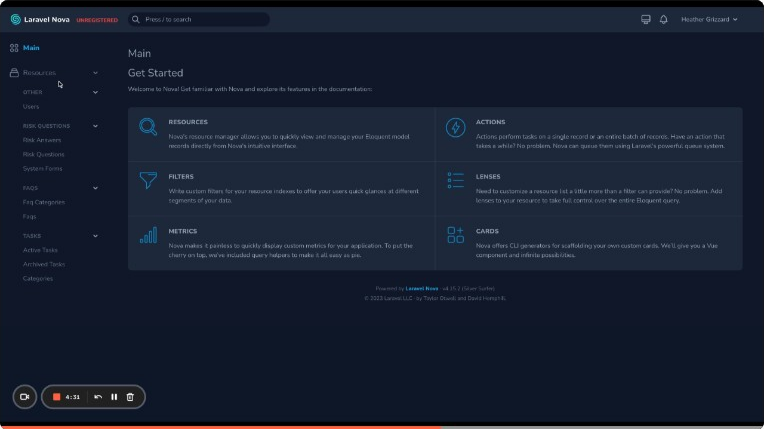
The main navigation menu (usually on the left or top) allows you to access all the sections required to complete your profile.
Key Concepts to Understand
Before diving into data entry, it helps to understand a few key terms and features used within AML Complete:
BOOM (Beneficial Owners, Officers, Managers)
This acronym refers to the individuals who ultimately own or control your practice or have significant management responsibilities. You will need to identify and record details for all BOOMs associated with your practice. The system requires specific information about these individuals as part of regulatory requirements (Regulation 26).
Relevant Work / Relevant Persons
When adding staff or subcontractors, the system focuses on individuals whose work is relevant to AML compliance. This generally includes anyone whose role could involve identifying, mitigating, preventing, or detecting Money Laundering and Terrorist Financing (MLTF) risks. This includes yourself, even if you are a sole practitioner.
Yellow Highlights
As you navigate through the forms, you will notice some questions are initially highlighted in yellow. This is a visual aid to help you track your progress. The yellow highlight disappears once you select an answer for that question. Ensure all yellow highlights are gone before moving to the next section or submitting your application, as this indicates you have addressed all required fields.
Next Steps
Now that you understand the basics, you are ready to begin setting up your practice information. Proceed to the Setting Up Your Practice section for a step-by-step guide.